
Understanding Platform Navigation
Learn how to move between the public site, the customer portal, and the admin area using the sidebar and top bar.
Learning Objectives
- Navigate the customer portal sidebar
- Understand the expandable sidebar behavior
- Use the top bar and mobile navigation
Prerequisites
The sidebar
After signing in, the sidebar appears on the left side of the portal. On desktop, it starts collapsed (showing only icons) and expands when you hover over it. Each icon links to a portal section: Home, Recovery, AI Agents, Reports, Billing, Integrations, Support, Knowledge, and Account.
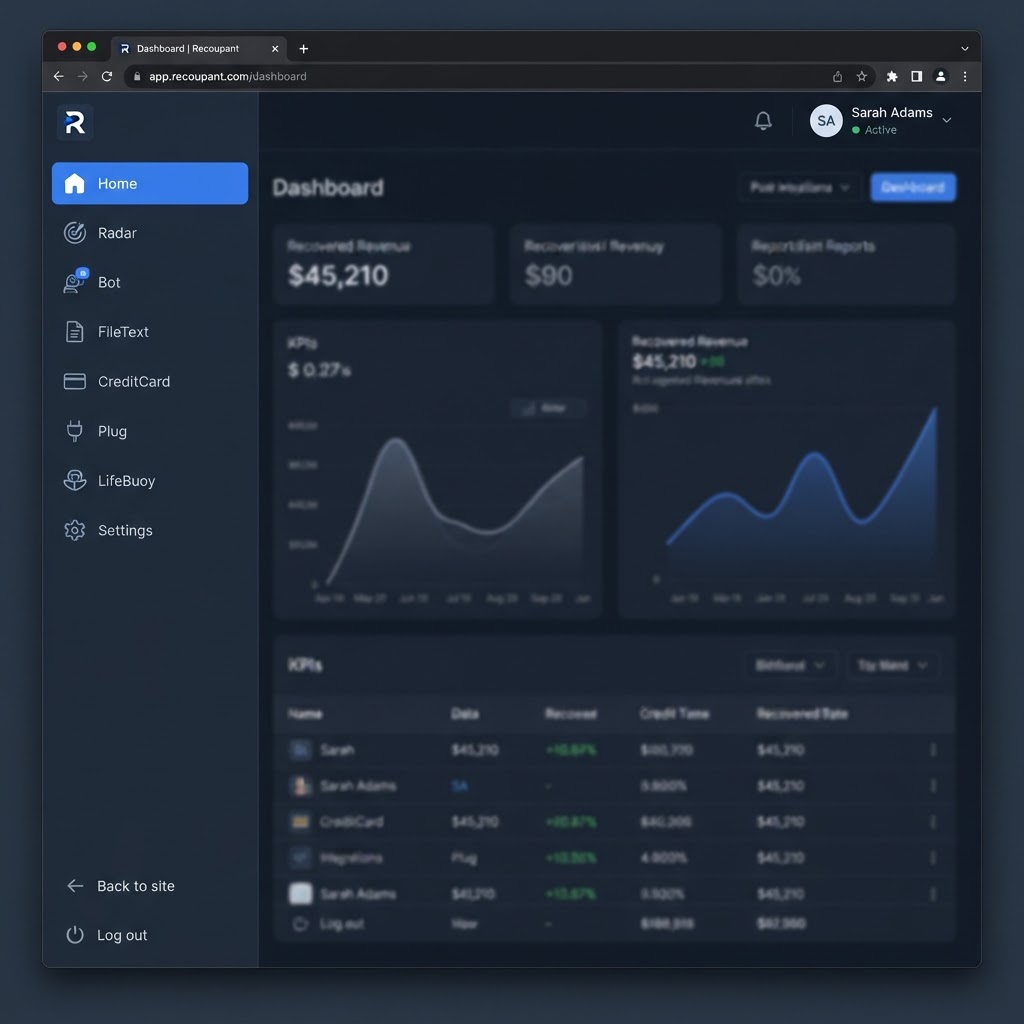
The top bar
The top bar spans the top of the portal and shows the current page title. On mobile, the sidebar is replaced by a bottom navigation bar with the same key sections.
Public site navigation
The public site has its own header with links to the Free Assessment, Plans, Knowledge Center, About, FAQ, Contact, and Sitemap. The Learning Center is accessible from this header and from the footer.
Important Notes
- The sidebar expands on hover — move your mouse over it to see full labels.
- On mobile, use the bottom navigation bar to switch between sections.
Troubleshooting
I cannot see the sidebar labels
Hover your mouse over the collapsed sidebar — it expands to show full labels. On mobile, use the bottom navigation bar.
Related Tutorials
Need more help?
Browse the Knowledge Center or chat with our Support AI assistant.